

Look, Google is my job. I do Google most days, most of the day. Without it, I’d likely be in a different career. After all these years doing Google Ads, I’m still constantly reminded how annoying it can be.
Recently, a client reached out with an image of an ad for one of their products. They build solid-wood furnishings for children, such as beds, desks, shelves, etc. They reasonably reached out to me with the following:
“This ad for [Bed Type] came up today, and I noticed some errors. This bed is not made of Red Oak. It is available in Walnut or Maple Wood. Additionally, the photo shows a Cube Shelf and a product we no longer carry. Can we get this updated?”

I quickly confirmed that the screenshot was indeed an ad, and set off to fix the problem. First, I looked at the ad text. Sure enough, we had two ad descriptions, one in a Search Network campaign and another in a Performance Max campaign that had “red oak.” I updated the copy in both and moved on to the image.
This is where my travail began.
I confirmed that the image wasn’t an asset for the ad group, then the campaign, and finally, the account. I couldn’t find the Cube Shelf image as an image asset anywhere within the account, including within the PMax campaign. With the vast majority of my clients, I turn off all automatically created assets to avoid situations just like this, so naturally, that’s where I turned next.
I confirmed that AI Max was turned off for the Search Network campaign and that automatically created assets were turned off for the campaign overall. I then checked that the PMax campaign wasn’t automatically generating ad assets from the landing pages, and sure enough, that setting was off. I turned off the image enhancement setting in the PMax campaign just in case, though I doubted it was the culprit, so I kept digging.
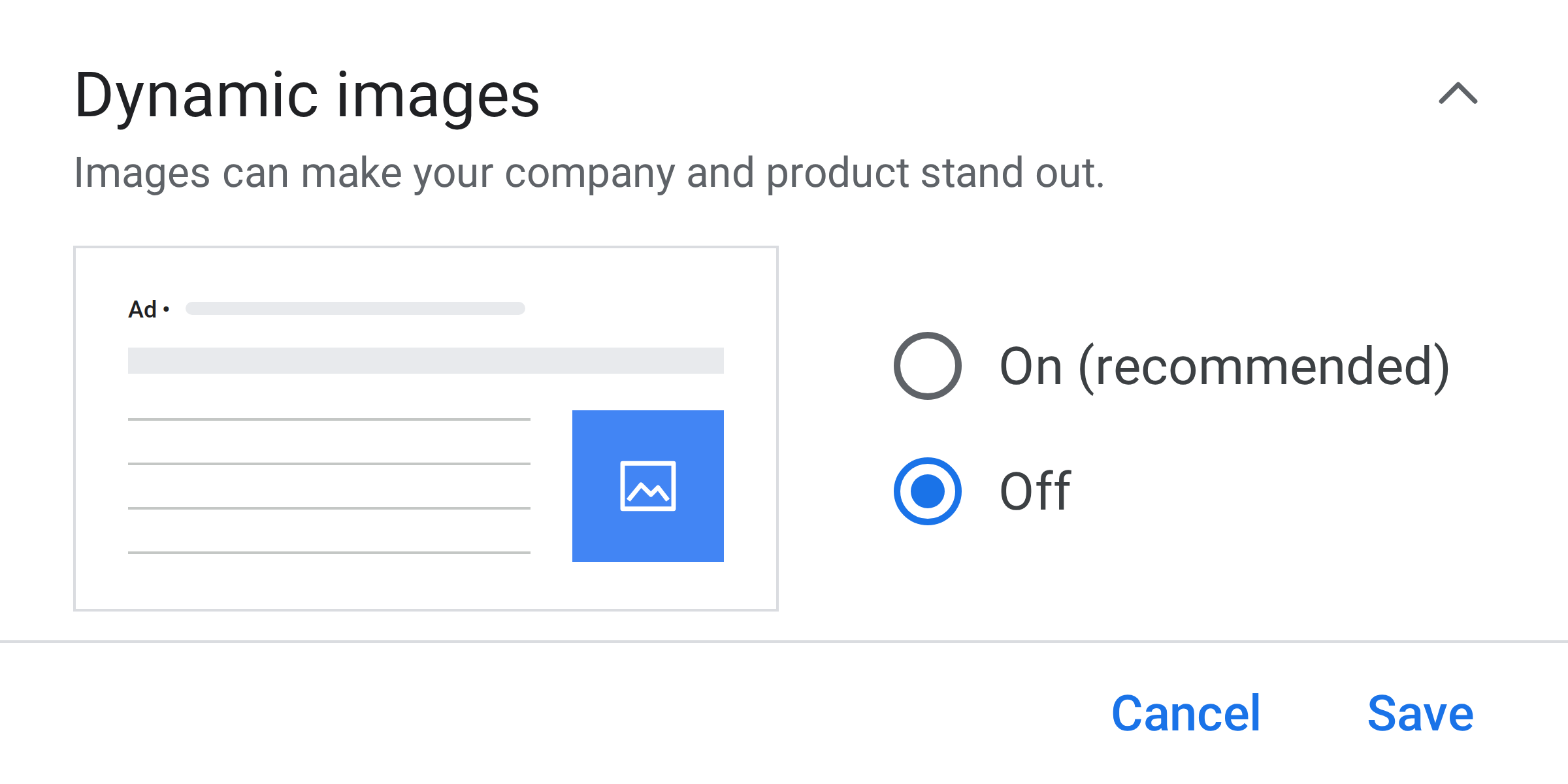
I checked the account-level automated assets performance report, and only seller ratings had served. Still, I confirmed that dynamic images were turned off at the account level. I checked the auto-apply settings within the Recommendations section. I checked the PMax combinations report; no incorrect images. I even went to the Merchant Center feed, as PMax campaigns can pull from images in targeted products, and reviewed the relevant products’ associated images to ensure the Cube Shelf image wasn’t there.
Finally, I returned to the account-level automated asset settings page. As I found earlier, dynamic images were turned off. However, some of the other settings were on. I started going through them to see if any of them could be generating an image. Sure enough, I found the problem under automated locations!
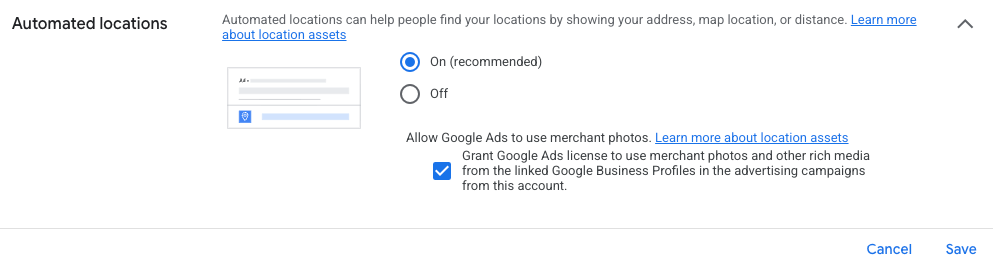
“Grant Google Ads license to use merchant photos and other rich media from the linked Google Business Profiles in the advertising campaigns from this account.”
Automated locations was on, and this setting to grant the use of GBP images was checked. I turned both settings off.
I’ve been doing Google Ads for over 14 years now, and I am still astonished at how many different ways Google employs to allow for automatically generated assets to show in ads. I had to check thirteen different settings pages before I found the issue. THIRTEEN. Let’s review all the places I had to look before I found the right setting:
- Search Network image assets for the ad group
- Search Network image assets for the campaign
- Search Network image assets for the account
- PMax image assets
- AI Max
- Automatically created assets at the campaign level
- Asset optimization in the PMax campaign settings for image enhancement and landing page images
- Account-level automated assets performance report
- Account-level automated asset settings (specifically looking at Dynamic images)
- Auto-apply settings under Recommendations
- PMax combinations report
- Merchant Center product feed
- Finally, the account-level automated asset settings page under Automated locations
I recognize I’ve been pretty ranty in this post, but allow me one more. Do you want to know how you get to the settings for Automated locations? First, hover over Campaigns and select Assets. Make sure you’re on the Associations tab. Click on the three dots above More and select Account-level automated assets. Click on the three dots above More again and select Advanced settings. And now you’ve arrived. It takes one hover and five clicks to get to this genuinely impactful settings page. I get that Google Ads has a lot of settings, but come on, there has to be a more user-friendly way to navigate to important settings. Although I suppose if there were, I might not have a job.
Use my experience as a reminder that there are numerous ways for Google to show assets in your ads that you didn’t approve.
If you’d like to do all of this yourself, go for it, but if you’d like to work with someone who will do it for you, give me a call. (385) 685-0405.